
Getting started
Set up in three steps, whichever service you need
Everyone signs up the same way. You only choose your service at the third step, and the rest of this guide shows what happens next for each one.
Which service do you need?
It helps to know which service fits before you start.
Ltd company contractor accounting
Our monthly accounting service for contractors and small businesses trading through a limited company.
Monthly service
Sole trader accounting
Our monthly accounting service if you run your own business as a self-employed individual.
Monthly service
Landlord accounting
Our monthly accounting service if you rent out property.
Monthly service
Personal Tax Only
We prepare and file your personal tax return (Self Assessment) for the year, and nothing else.
One tax year at a time
DPNI payroll
You live and work in the UK for an overseas employer with no UK presence, so you must run your own Direct Payment PAYE scheme. We run the payroll and tell you exactly what to pay HMRC each month.
Fee agreed with you first
HMRC Disclosure Service
Bring undeclared UK or overseas income up to date with HMRC through its Digital Disclosure Service, including if HMRC has written to you.
Fee agreed with you first
Something else
Anything that doesn’t fit the services above, such as a letter of tax advice, a residency question or help with a letter from HMRC.
Fee agreed with you first
Only need a tax return? Choose Personal Tax Only, even if you are a sole trader or landlord. The sole trader and landlord options are our ongoing monthly services.
Nothing is charged at sign-up for DPNI payroll, a disclosure or something else. Your accountant agrees the work and the fee with you first.
Not sure which to choose? Pick the closest one and tell us in a message, or get in touch before you start. We can change your service type for you if needed.
Step 1: Enter your details
- Go to www.no-worries.co.uk/sign-up, or click Sign up anywhere on our website.
- Enter your first name, last name and email address.
- Click Lets get started.
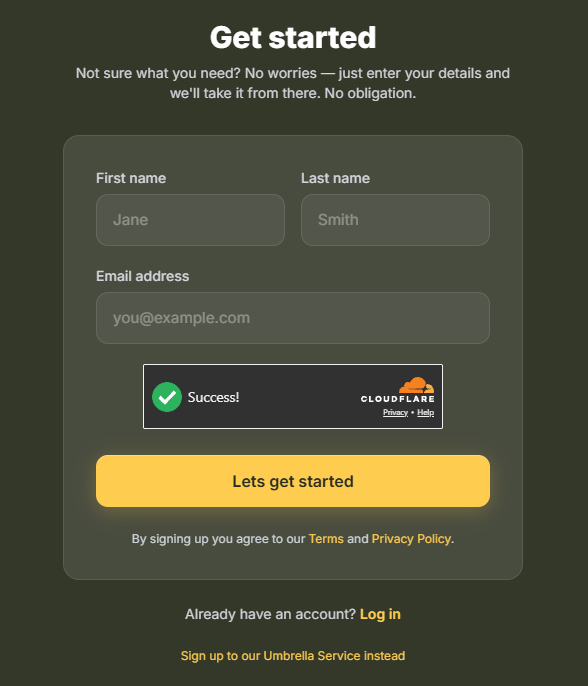
You will see a “You’re on your way!” message, and we will email you a link to verify your account.
Step 2: Activate your account
Look for an email from us with the subject Activate your new account, and click the Confirm button in it.
No email? Give it a few minutes, then check your spam or junk folder.
Link expired? It works for 10 days. If it has expired, simply sign up again.
If you have used our personal tax return service before, the email will say we found an existing account. To file another personal tax return, click Reset password in the email and log in to your existing account. To sign up for a different service, carry on with the Confirm button.
Step 3: Choose your service and set a password
The link takes you to a short form.
- Service type: choose the service you need from the list. The question mark next to it explains each one.
- Trading history: for our accounting services, tell us how long your business has been trading.
- What can we help you with? If you chose Something else, describe in a sentence or two what you need. Your accountant reads this before contacting you.
- Password: choose a password of at least 9 characters and type it again to confirm it.
- How did you hear about us? Let us know, then click Submit.
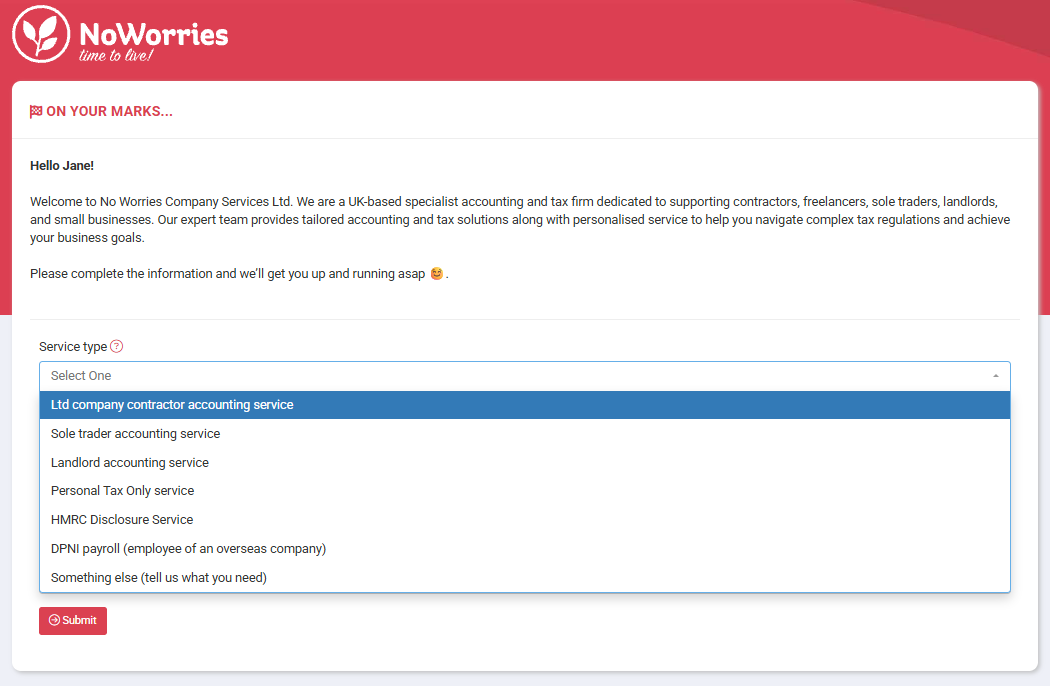
You are now logged in to your client portal. What you see next depends on the service you chose, and the sections below take each in turn.
Limited company, sole trader and landlord accounting
You will arrive at your Pre-Launch Dashboard. This is where you give us the information we need to set you up. Work through each section:
- Personal information: your details as the person we will be working with.
- Business information: details of your company or business.
- Referral: if an existing client recommended us, enter their name and they will receive a discount on their monthly fee as a thank you.
- Anti-Money Laundering (AML) checks: a quick online identity check (see Your identity checks).
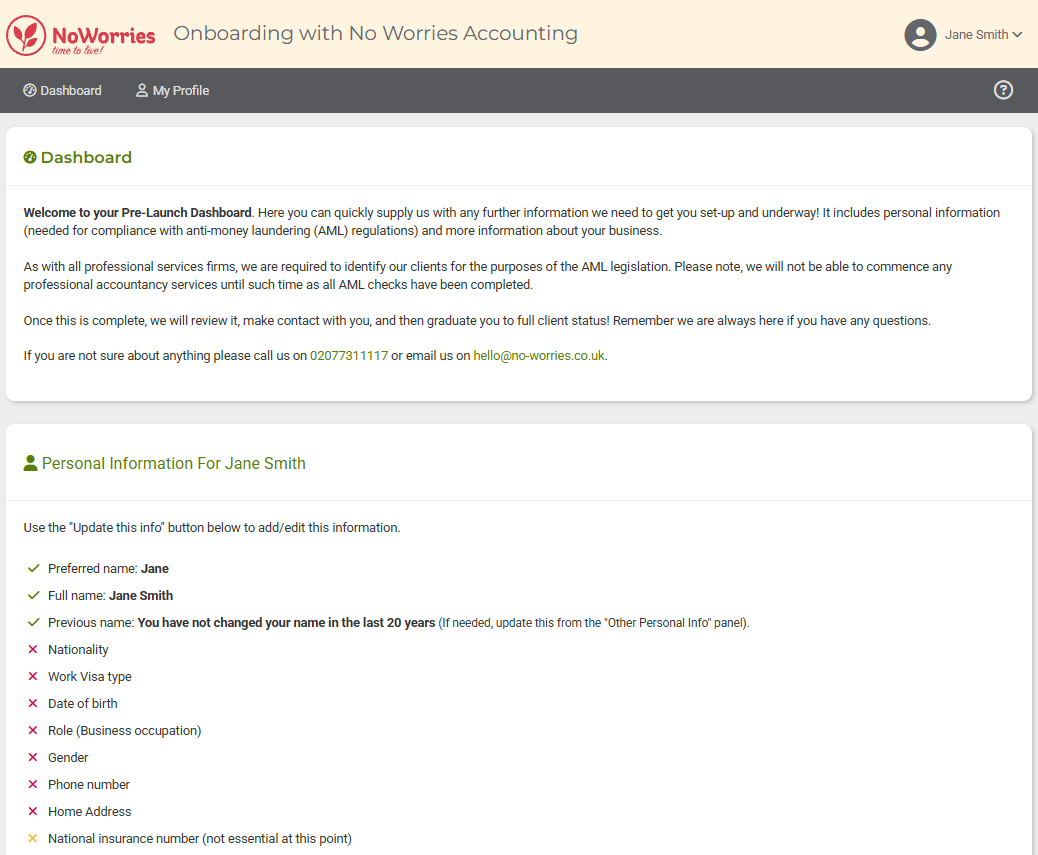
When everything is complete, click All Done. We are alerted straight away, review your information and get in touch. Once we have verified everything, we activate your account as a full client.
Personal tax return
You will arrive at your dashboard.
- Complete your identity checks (see Your identity checks). Before you can start a return we need your nationality, date of birth, gender, phone number and home address, which you can add in My Profile.
- In the Add a Service panel, choose the tax year under Personal tax return and click Start.
- Answer the questions about your income for that year, for example whether you were a company director, or had income from abroad or from rental property.
- Choose how to pay: by card straight away, or by invoice from your personal bank account. We start work once we have been paid.
Pay from your personal account. Our fee for your personal tax return is a personal expense, so it can’t be paid by or claimed through your company.
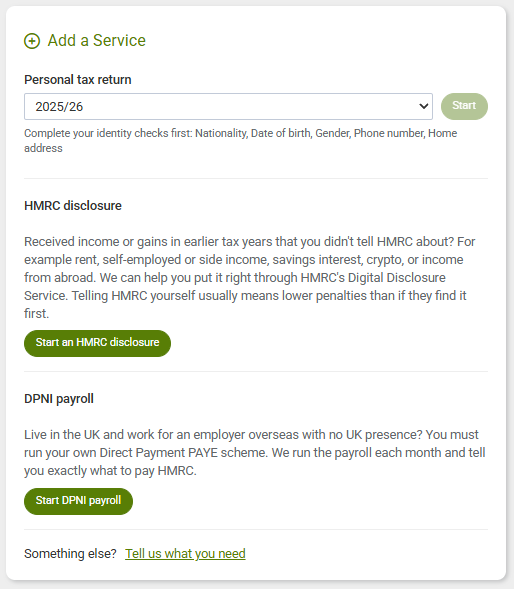
Your return then appears under Personal Tax Returns on your dashboard. You will be asked to approve it there before we file it, and you can download it afterwards.
Signing up in January or later? Please have all your income details and documents ready to send to us as soon as you have registered, so we can meet the 31 January deadline.
DPNI payroll
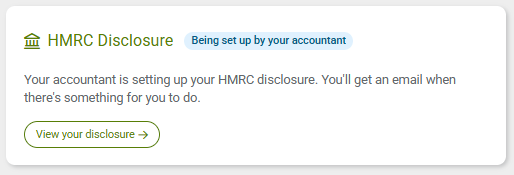
You will arrive at your dashboard, where your DPNI payroll card says it is being set up by your accountant. Nothing is needed from you yet.
- Complete your identity checks (see Your identity checks). We can’t start without them.
- Your accountant confirms the details of your employer, how often you are paid and our fee, then releases the service to you. You will receive an email with your next steps.
- The next time you log in, you will be asked to read and sign your engagement letter (see Signing your engagement letter).
- Your DPNI payroll page then shows a short guide to registering your Direct Payment PAYE scheme with HMRC, and anything else we still need from you. Upload what we ask for, and when HMRC sends you your PAYE and Accounts Office references, upload that letter too.
- Each time you are paid, use Send Us A Payslip to upload the payslip from your employer, ideally three working days before payday.
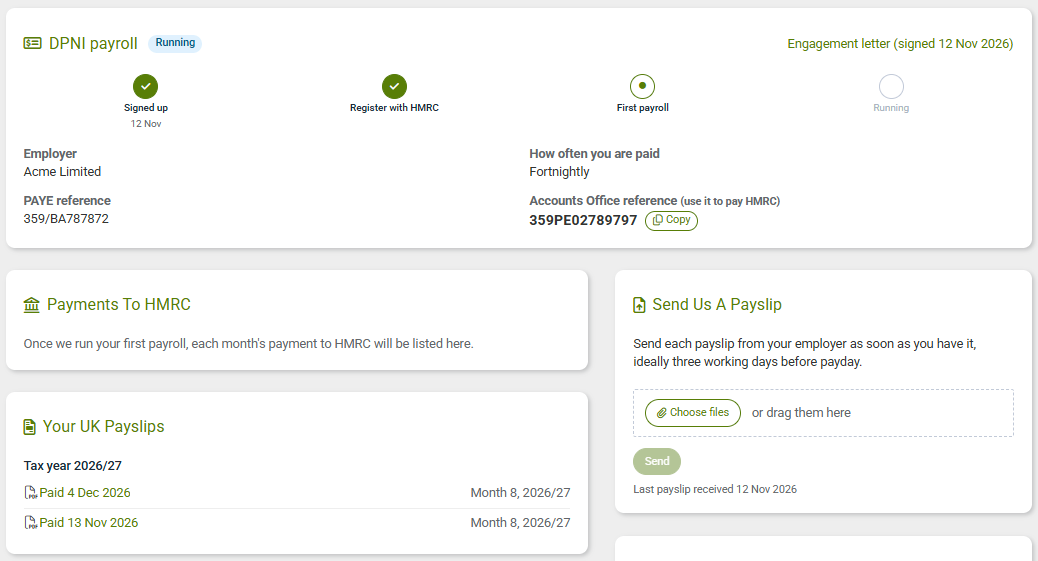
We run your UK payroll from your employer’s payslips, and each UK payslip we produce appears under Your UK Payslips. Once a month we email you what to pay HMRC and the date it is due (the 22nd). It is also listed under Payments To HMRC, with HMRC’s bank details and your payment reference.
Employer in the EU, the EEA or Switzerland? The arrangement is different, so please get in touch before signing up.
HMRC disclosure
You will arrive at your dashboard. Nothing is charged at sign-up.
- Complete your identity checks (see Your identity checks).
- Your accountant contacts you to understand your situation, then confirms the tax years to disclose and our fee.
- Read and sign your engagement letter in the portal.
- Send us the information and documents we ask for. Everything we still need is listed on your disclosure page.
- When your disclosure is ready, read the draft and approve it on your dashboard.
- We submit it to HMRC. Your dashboard then shows your disclosure reference, and the payment reference and amount to pay HMRC.
Something else
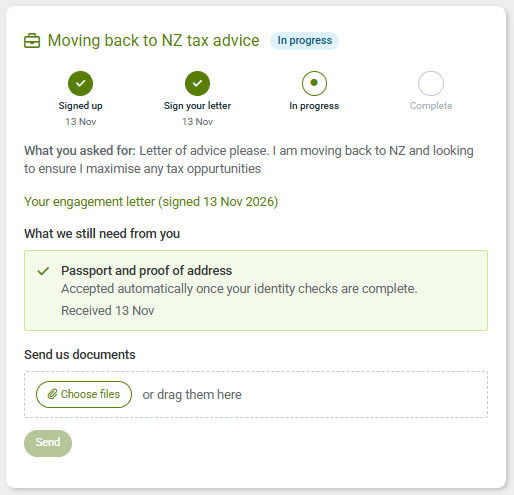
If you chose Something else, you will arrive at your dashboard with a panel showing what you asked for. Nothing is charged at sign-up.
- Complete your identity checks (see Your identity checks).
- Your accountant will be in touch to agree the work and the fee with you, then sends you an engagement letter to sign.
- Read and sign the letter in the portal. We start once it is signed.
- If we need anything from you, it is listed on the panel. Use Send us documents to upload it.
- When the work is finished, the result (for example your letter of advice) appears on the panel under Your documents, and we email you to let you know.
Your identity checks
Why we ask. As an accounting firm we are legally required to verify the identity and address of every client under UK anti-money laundering regulations, and we can’t start any work until this is done.
It is a one-off online check through our partner Yoti, and usually takes a couple of minutes. Have these ready:
- your passport or photo ID;
- a phone or computer with a camera, for a quick selfie;
- a recent proof of address, such as a utility bill or bank statement.
- Add your personal details in My Profile if asked: your preferred name, nationality, date of birth, gender, phone number and home address.
- Click Start your Yoti check.
- Follow the steps on screen: photograph your ID, take the selfie and upload your proof of address.
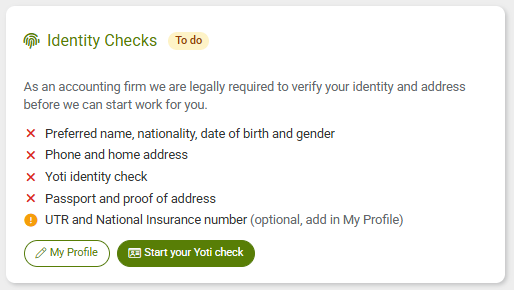
Once Yoti has checked your documents, your Identity Checks panel shows Complete. If it says Yoti is still processing, give it a few minutes and click Check for results.
Signing your engagement letter
For each service, we send you an engagement letter setting out the work we will do, our fee and our terms. You sign it in the portal, so there is nothing to print or post.
- Log in. If a letter is waiting, you are taken straight to it. Or click Read and sign on your dashboard (Sign now for a disclosure).
- Read the letter, then sign it on screen.
A copy of the signed letter is kept in your portal, and you can download it as a PDF at any time.
Adding another service later
Already a client? You don’t need to sign up again. Log in and use the Add a Service panel on your dashboard to:
- start a personal tax return for a tax year;
- start an HMRC disclosure;
- start DPNI payroll;
- ask us about something else: describe what you need and click Send to my accountant.
If you use one of our accounting services and need anything else, just ask your accountant.
Common questions
I haven’t received the activation email
It usually arrives within a few minutes. Check your spam or junk folder, and that you typed your email address correctly. If it still hasn’t arrived, sign up again or get in touch.
My activation link has expired
The link works for 10 days. After that, simply sign up again with the same email address.
I chose the wrong service
Let us know and we can change your service type for you.
Can my company pay for my personal tax return?
No. Our fee for your personal tax return is a personal expense, so please pay it from your personal bank account.
Why do I have to sign up again for a new service?
You don’t. Once you are a client, log in and use the Add a Service panel on your dashboard.
Need help?
If you get stuck, or aren’t sure which service is right for you, we are always happy to help.